Code Co-Occurrences
The Code Co-Occurrences tool allows you to see which codes overlap with each other. Codes make up both the rows and the columns of the table. Each cell counts the number of times the row's code and the column's code occur together.
Two codes occur together when:
- They are applied to the same selection; or,
- They are applied to selections that overlap.
To open Code Co-Occurrences:
Click the
Analysebutton in the toolbar.Choose
Code Co-Occurrences.
The tool contains the Document Selector.
Adding codes
To add codes to the table:
Drag the codes from the Code Browser into either:
- The
Drop codes here for rowsbox, to add them as rows; - The
Drop codes here for columnsbox, to add them as columns; or, - Anywhere else in the
Co-Occurrence Grid, to add them as both rows and columns.
- The
The table fills in as you add codes.
To remove a code, click the
xbeside its name.
TIP
Dropping the same codes into both the rows and the columns gives you every combination at once. Where a code meets itself, the cell shows a dash: a code always overlaps with itself, so it is not counted.
Reading the results
Each cell shows how many times the two codes occur together. The Total column and row add up the table, and the % of Total column shows each row's total as a percentage of the grand total.
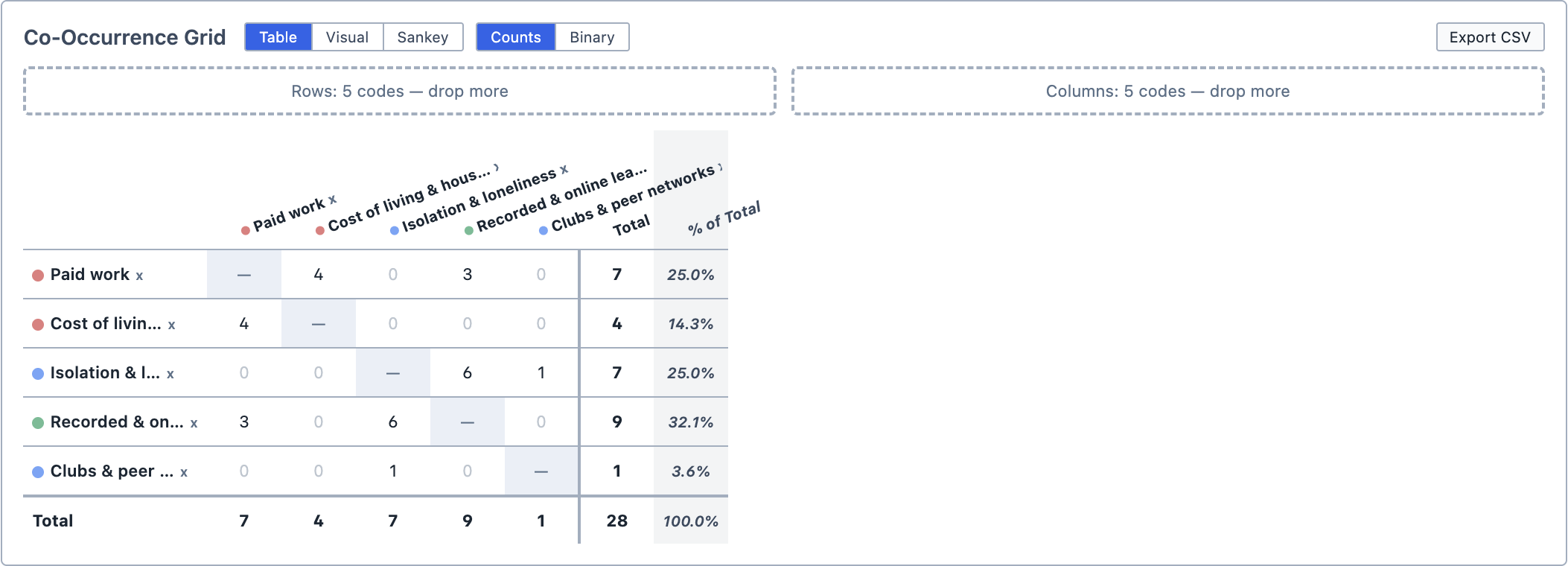
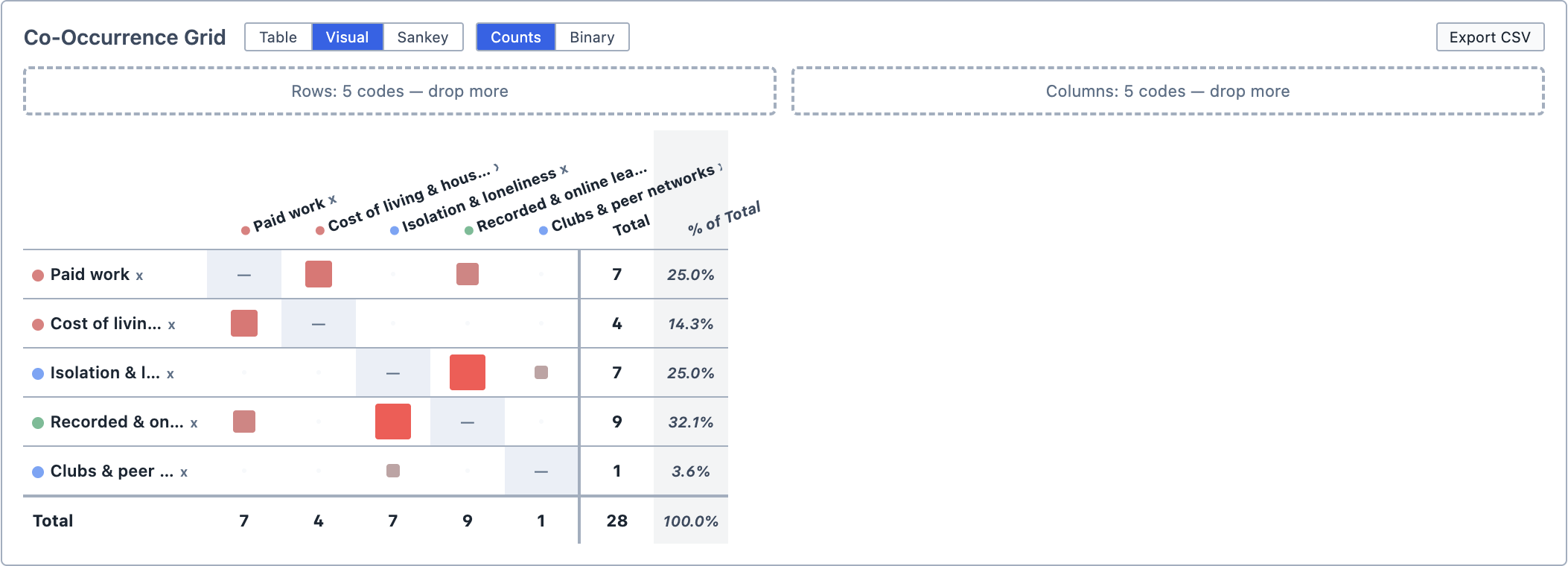
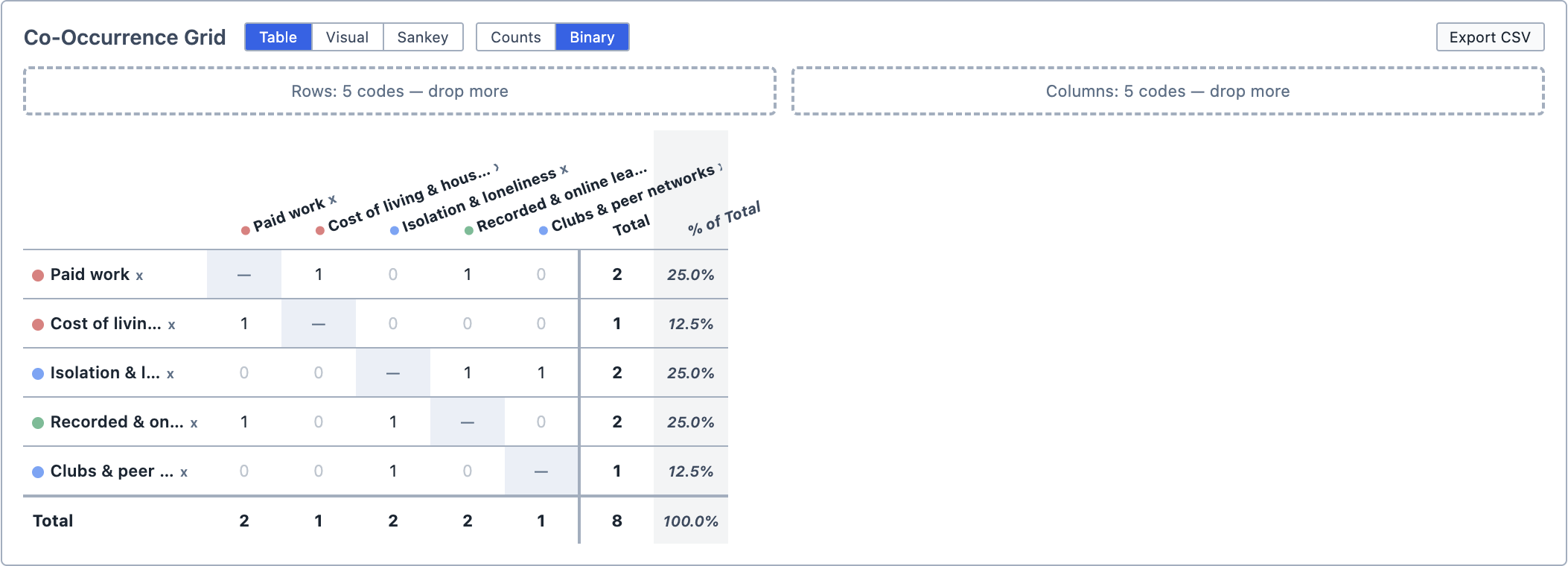
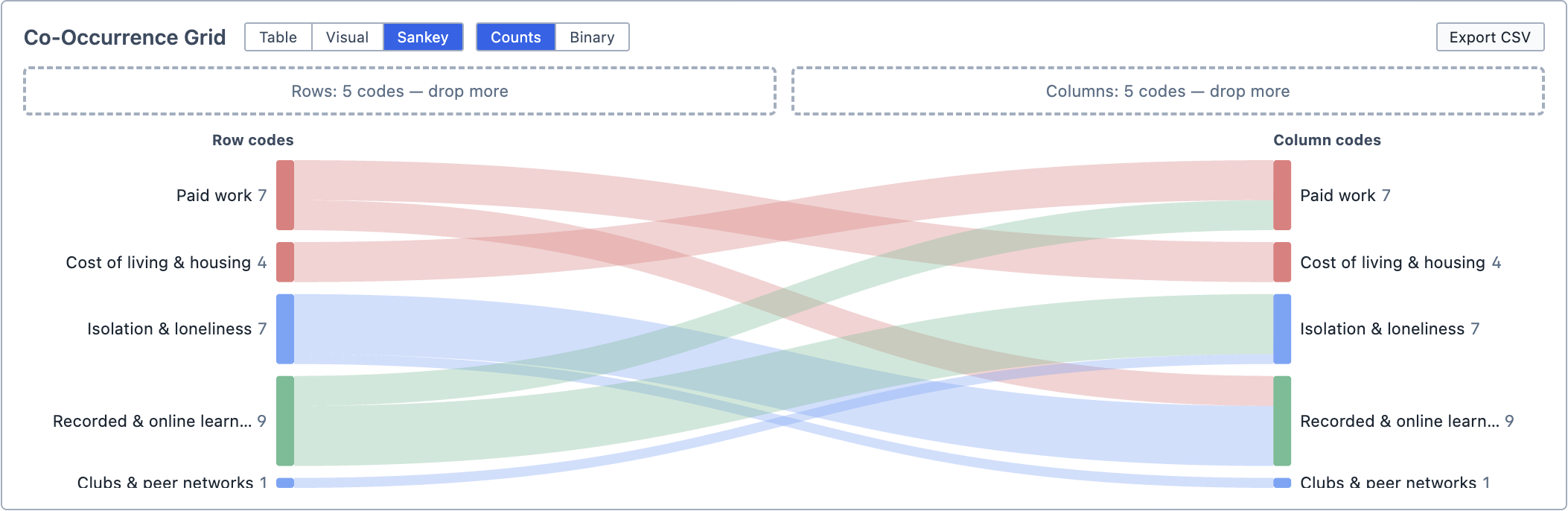
You can change how the results are displayed using the buttons above the table. The first set of buttons chooses how the results are shown, and the second chooses what each cell counts. The highlighted buttons show the current choice.
| Button | Output |
|---|---|
Table | Shows the results as numbers. This is the default. |
Visual | Shows each cell as a coloured square, sized and shaded by its count. |
Sankey | Shows the table as a Sankey diagram, linking each row's code to the codes it occurs with. |
Counts | Shows how many times the two codes occur together. This is the default. |
Binary | Shows 1 if the two codes ever occur together and 0 if they do not. You can use it with Table, Visual or Sankey. |
Exploring the results
Click any cell with a count above zero to see where the two codes overlap. The overlapping selections appear in the Query Results pane.
- Clicking a row's
Totalshows every selection coded with that row's code. - Clicking a column's
Totalshows every selection coded with that column's code.
Saving and exporting
You can save the analysis by clicking Save Analysis. It appears in the Analyses Panel. If you make changes later, click Update Analysis to save them.
You can export the table as a spreadsheet by clicking Export CSV.
You can also add the analysis to a Report by dragging it from the Analyses Panel into the report.