Code Orders
The Code Orders tool allows you to see the order in which codes appear in each document. Each document is drawn as a strip, running from its beginning on the left to its end on the right. Coloured blocks show where each code appears along the way.
Think of it as a timeline for each document. It is particularly useful for interviews, where you can see whether a topic comes up early, late, or keeps returning.
To open Code Orders:
Click the
Analysebutton in the toolbar.Choose
Code Orders.
The tool contains:
- The Document Selector
- The Group By function
Adding codes
To add codes to the visualisation:
Drag the codes from the Code Browser into the
Code Ordersbox.Each code is shown in its own colour on every document's strip.
To remove a code, click the
×on its label above the visualisation.
Reading the results
Each row is one document. The further right a block sits, the later in the document that code appears.
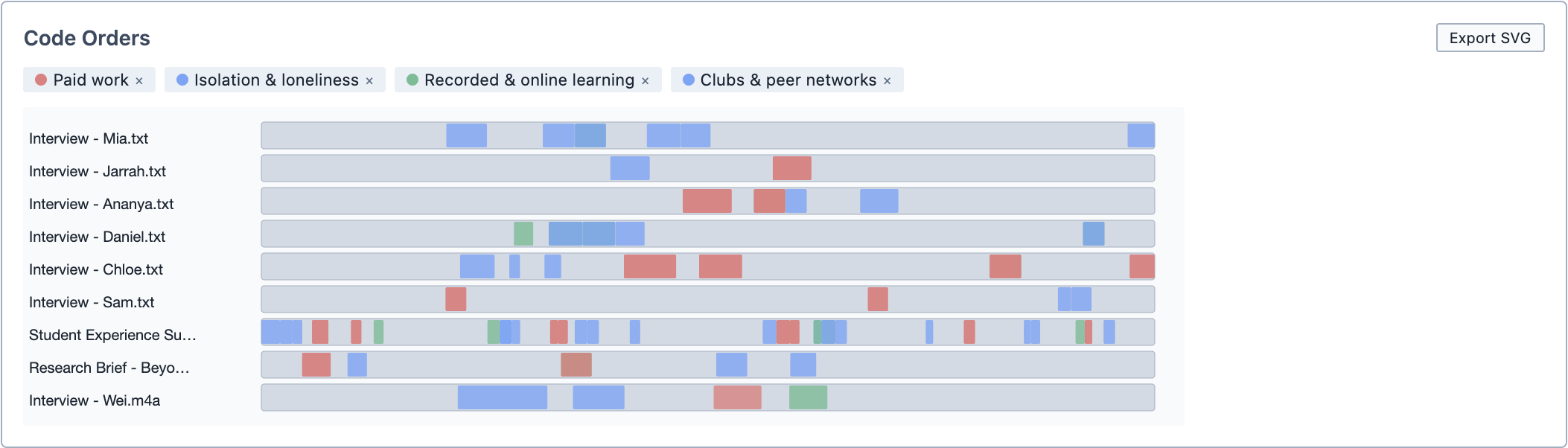
If you have used Group By to group documents by tag, the tagged documents are placed end to end on a single strip.

Hover over a block to see the code's name and where it sits in the document, as a percentage of the way through.
Exploring the results
Click a block to see the selections coded with that code in that document. The selections appear in the Query Results pane.
Saving and exporting
You can save the analysis by clicking Save Analysis. It appears in the Analyses Panel. If you make changes later, click Update Analysis to save them.
You can export the visualisation as an image by clicking Export SVG.
You can also add the analysis to a Report by dragging it from the Analyses Panel into the report.