Results in Documents
The Results in Documents tool allows you to see how many results your saved queries find in each document. Saved queries make up the columns of the table, and documents make up the rows.
Think of it as Codes in Documents for queries: instead of asking "where does this code appear?", it asks "where does this query find something?".
To open Results in Documents:
Click the
Analysebutton in the toolbar.Choose
Results in Documents.
The tool contains the Group By function.
Adding queries
To add queries to the table:
Drag the saved queries from the Saved Queries Panel into the
Resultsbox.Each query appears as a column in the table.
To remove a query, click the
×above its name.
The rows are the documents where at least one of your queries finds a result. Each query searches the documents set in its own Document Selector, so to change which documents a query searches, edit the query itself.
TIP
Only saved queries can be added. You can save a query by clicking Save Query in the Query Results pane.
Reading the results
Each cell shows how many results that query finds in that document (or group of documents). The Total column and row add up the table, and the % of Total column shows each row's total as a percentage of the grand total. The Total row also shows how many documents the table covers.
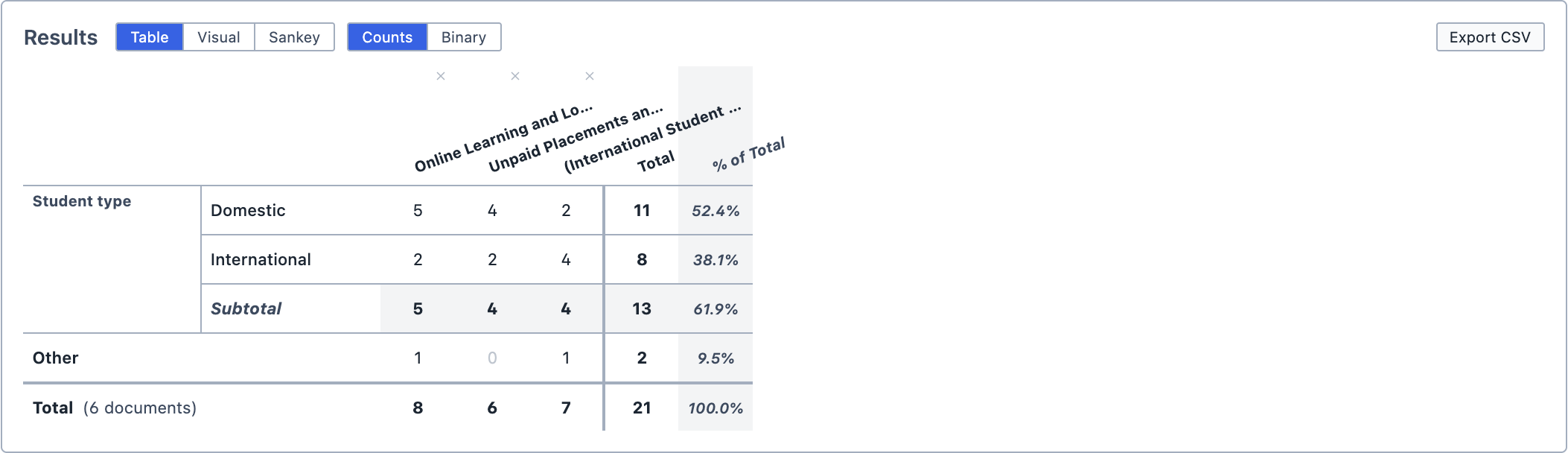
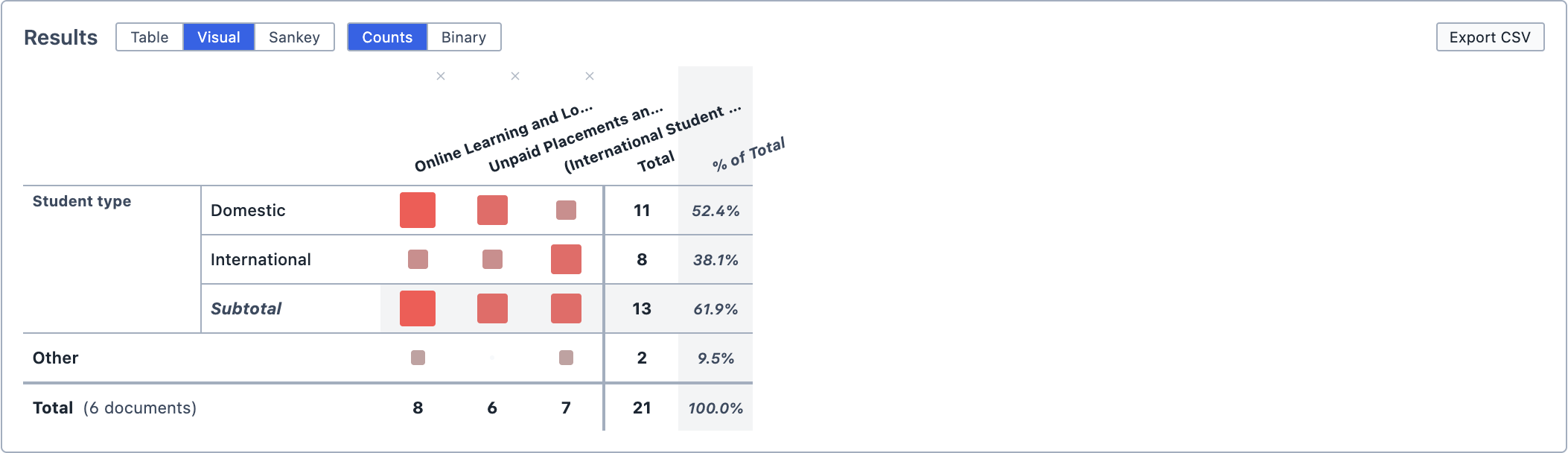
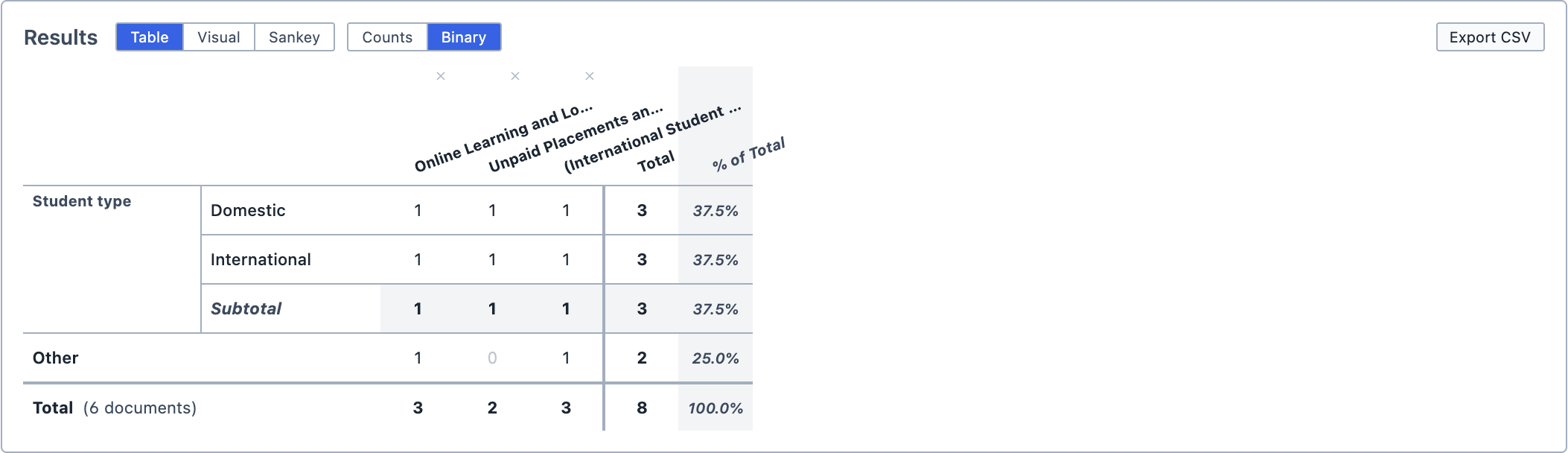
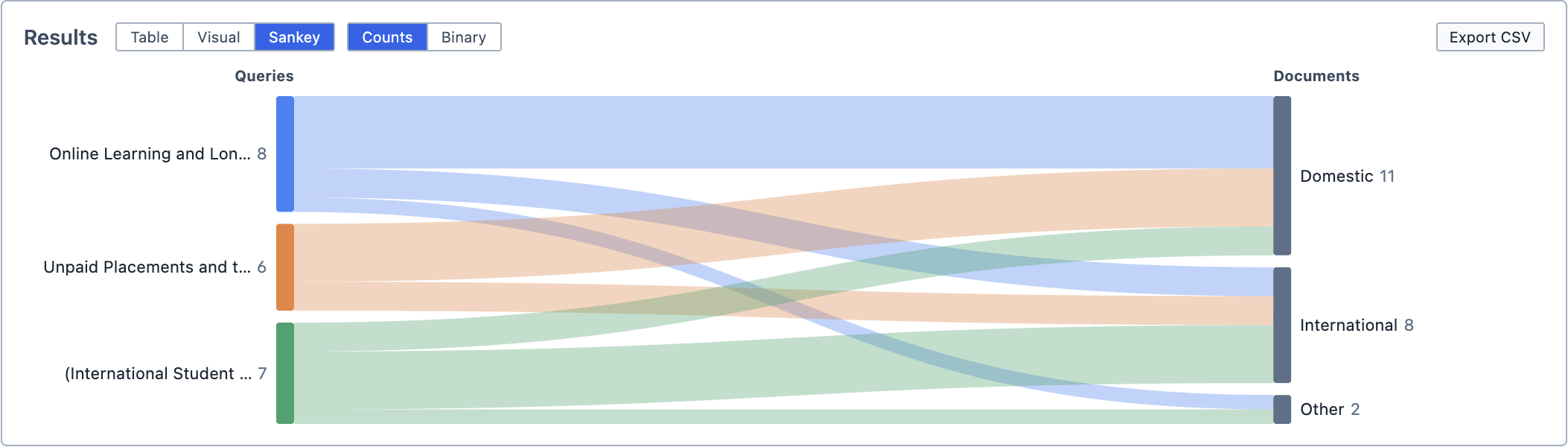
You can change how the results are displayed using the buttons above the table. The first set of buttons chooses how the results are shown, and the second chooses what each cell counts. The highlighted buttons show the current choice.
| Button | Output |
|---|---|
Table | Shows the results as numbers. This is the default. |
Visual | Shows each cell as a coloured square, sized and shaded by its count. |
Sankey | Shows the table as a Sankey diagram, with query results flowing into documents. |
Counts | Shows how many results each query finds in each cell. This is the default. |
Binary | Shows 1 if the query finds anything in that document and 0 if it does not. You can use it with Table, Visual or Sankey. |
Exploring the results
Click any cell with a count above zero to run that query in that document. The results appear in the Query Results pane.
- Clicking the
Totalat the bottom of a query's column runs that query across every document in the table. - Clicking the
Totalat the end of a document's row runs all of the queries together in that document.
Saving and exporting
You can save the analysis by clicking Save Analysis. It appears in the Analyses Panel. If you make changes later, click Update Analysis to save them.
You can export the table as a spreadsheet by clicking Export CSV.
You can also add the analysis to a Report by dragging it from the Analyses Panel into the report.