Word Combinations
The Word Combinations tool allows you to see which words go together in your documents. Where Word Frequencies tells you which words are common, Word Combinations tells you how they are used: the phrases that keep coming up, the words that appear alongside a word you choose, and every context a word appears in.
To open Word Combinations:
Click the
Analysetab in the ribbon.Click
Word Combinations.
The tool contains:
- The
Count words inchoice, as in Word Frequencies - The Document Selector (when reading documents or coded passages)
The tool shows its results in three ways, which you choose with the buttons above the results:
| Button | Output |
|---|---|
Phrases | Lists the sequences of two to five words that repeat, or draws them as a network. This is the default. |
Associations | Lists the words that appear in the same sentences as a word you choose. |
Word Tree | Shows every place a word you choose appears, with the words before and after it. |
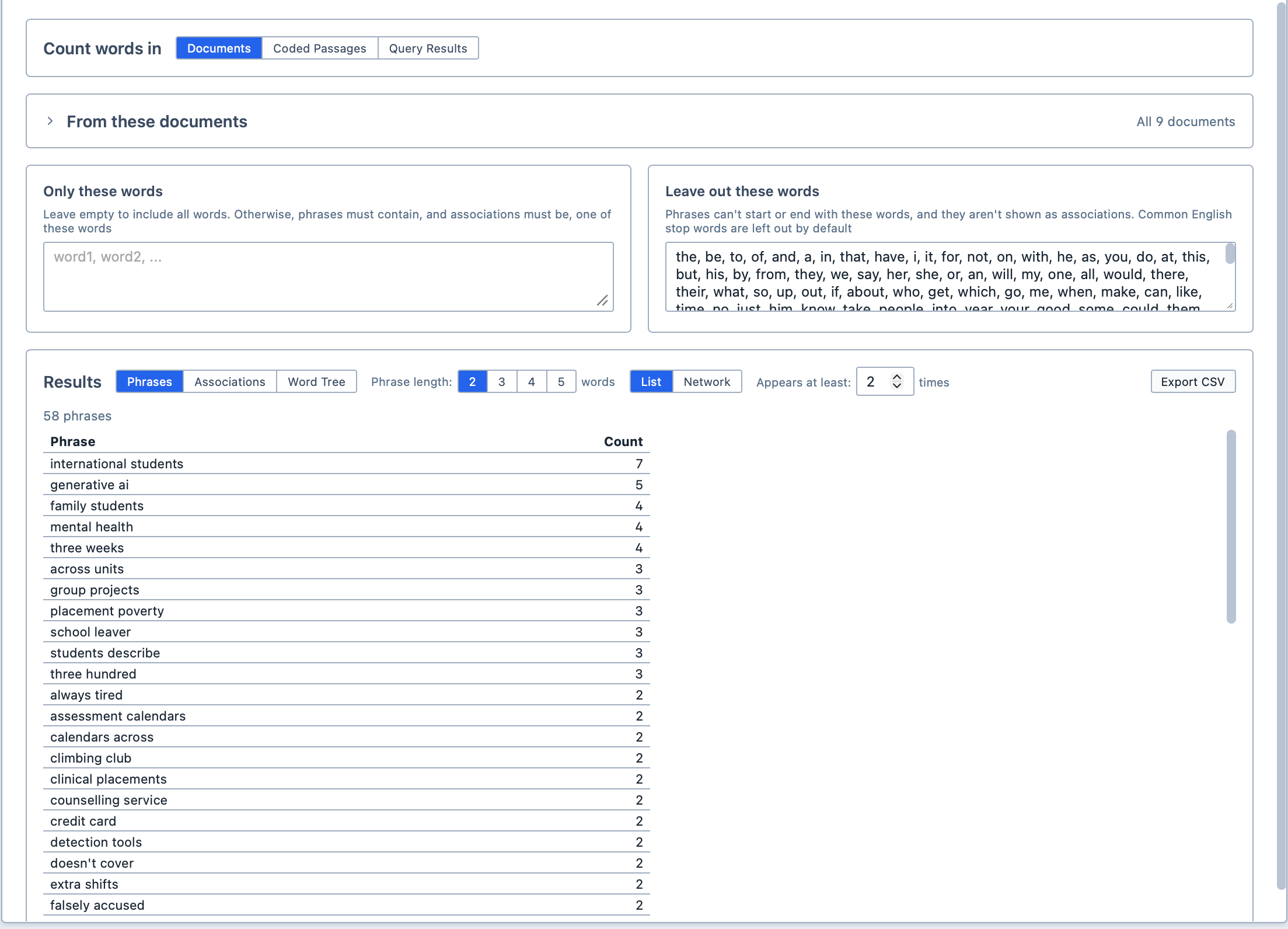
Choosing what to read
Use Count words in to choose what Magnolia reads:
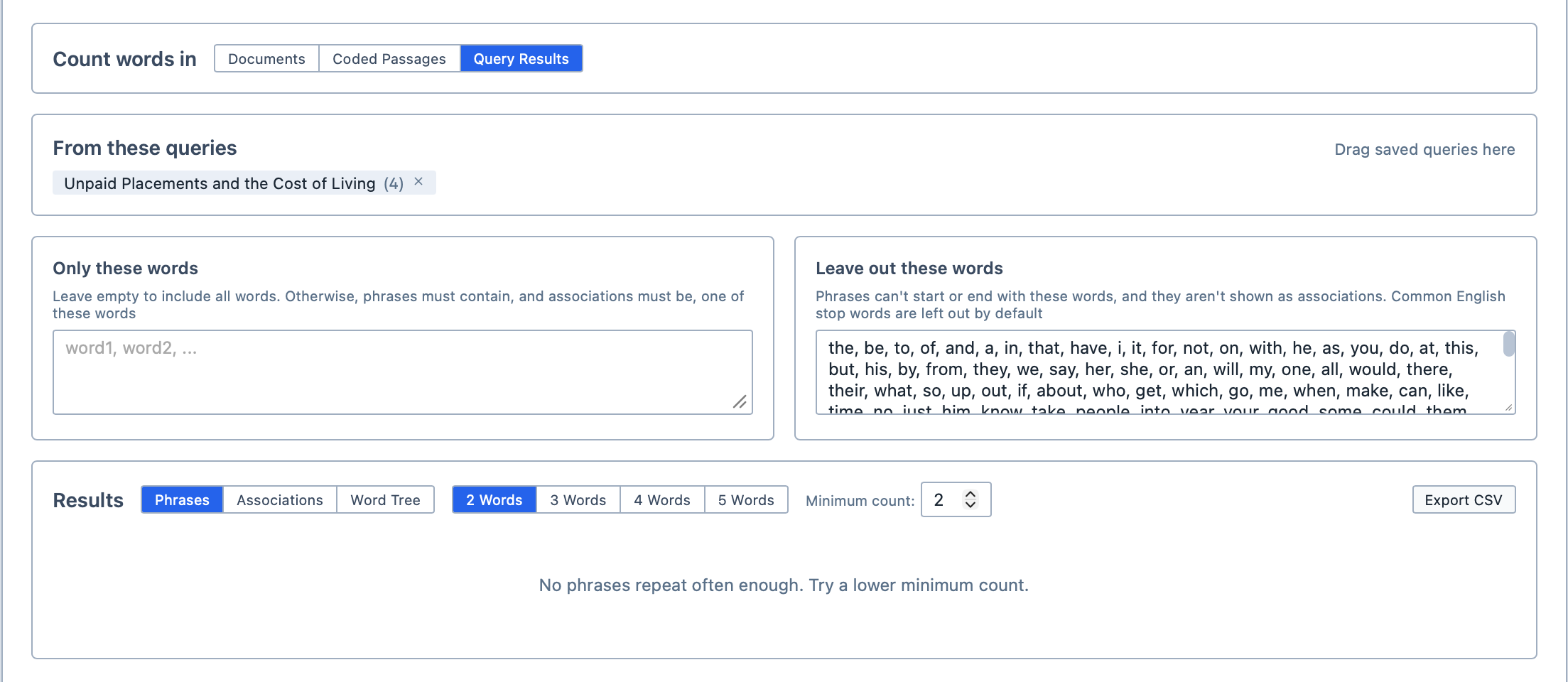
Documentsreads the whole of each selected document;Coded Passagesreads only the passages you have coded with particular codes. Drag the codes from the Code Browser into theCoded withbox; or,Query Resultsreads only the results of your saved queries. Drag the queries from the Saved Queries Panel into theFrom these queriesbox.
When you read coded passages, the passages of all your codes are read together. When you read query results, the results of all your queries are read together. Either way, clicking a result searches only inside the passages or results being read.
Each query searches the documents you chose when you built it, so the Document Selector is hidden while you read query results.
Phrases
Phrases lists the sequences of words that appear more than once, with the number of times each one appears. Think of it as finding the expressions your participants keep reaching for, such as "cost of living" or "mental health".
| Option | Use |
|---|---|
Phrase length | Chooses how many words each phrase has, from 2 to 5. Longer phrases repeat less often, so you may need to lower Appears at least to see any. |
List or Network | Chooses whether the phrases are listed or drawn as a network (see The phrase network). |
Appears at least | Shows only the phrases that appear at least this many times. It starts at 2. |
A phrase never runs across punctuation or a line break, so "money, time" is not counted as a phrase.
You can change which phrases are listed using the two boxes above the results:
| Box | Use |
|---|---|
Only these words | Lists only the phrases that contain one of these words. Leave it empty to list every phrase. |
Leave out these words | Leaves out the phrases that start or end with one of these words. It starts with the list of common English words (such as "the" and "of"), which you can edit. |
Because only the start and end of a phrase are checked, phrases such as "quality of life" are kept even though "of" is left out, while phrases such as "of the" are not.
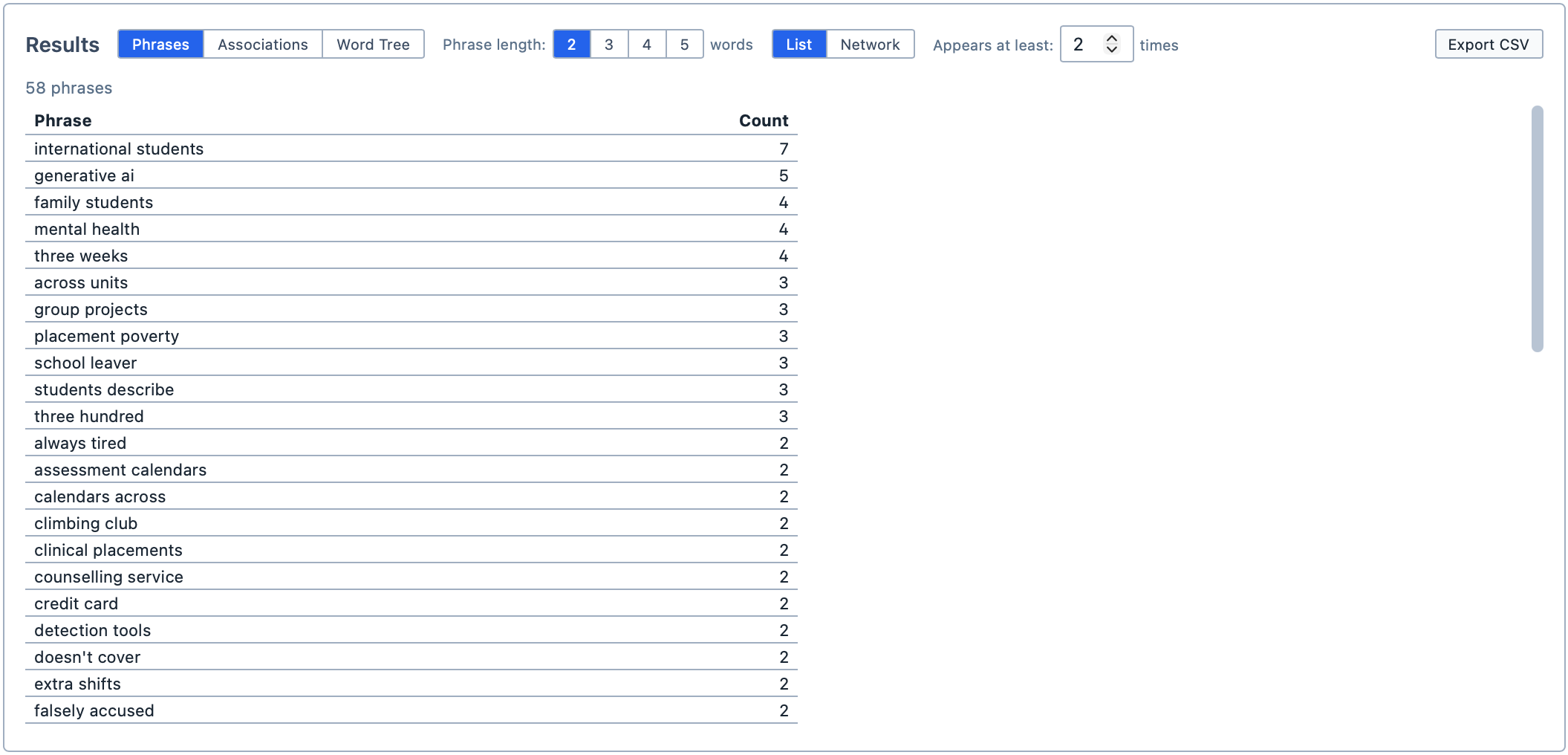
Click a phrase to search for it. Every place it appears is shown in the Query Results pane.
The phrase network
Click Network to draw the phrases instead of listing them. Each word is a dot, and the words that follow each other in a phrase are joined by a line. The more often a phrase appears, the thicker its line; the more often a word appears in phrases, the bigger its dot. Words that appear in several phrases join them up, so you can see, for example, that "mental health" and "health services" share "health".
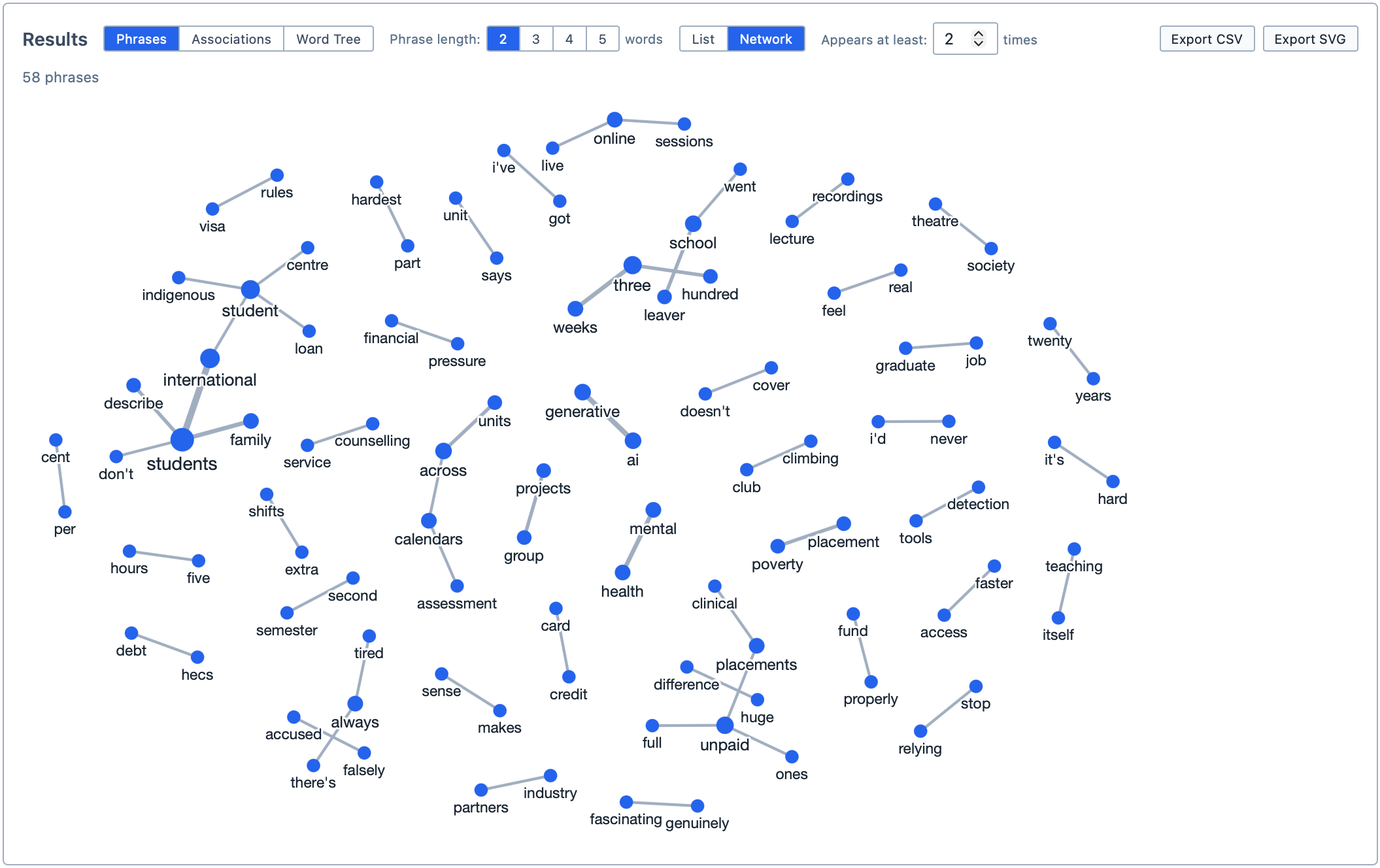
With a phrase length of 2 the network shows pairs of words; with 3 and more, each phrase is drawn as a chain of lines.
Words in Leave out these words aren't drawn. Instead, the line runs between the words either side of them: "quality of life" is drawn as a line from "quality" to "life". This stops small words such as "of" from joining up phrases that have nothing to do with each other.
Only the 80 most common phrases are drawn, so the network stays readable. Raise Appears at least or add words to Only these words to focus it further.
In the network:
- Hover over a word to see the words it is joined to;
- Hover over a line to see the phrases it stands for;
- Click a line to search for its phrase. If the line stands for more than one phrase, the most common one is searched; or,
- Click a word to see it in the Word Tree.
Associations
Associations takes a word you choose and lists the words that appear in the same sentences as it more often than chance would explain. For example, if "rent" keeps appearing in the same sentences as "worry", "worry" is near the top of the list for "rent".
To see a word's associations:
Click
Associations.Type a word into the
Wordbox. If you leave it empty, Magnolia uses the most frequent word that isn't inLeave out these words.
The table lists each associated word with:
| Column | Shows |
|---|---|
Together | How many sentences contain both words. |
% of Sentences | The share of the chosen word's sentences that also contain this word. |
G² | How unlikely it is that the two words share this many sentences by chance. The higher the number, the stronger the association. |
Use Minimum together to hide words that share fewer sentences than this with the chosen word. It starts at 3.
INFO
G² (log-likelihood) is a common measure of how strongly two words are associated. As a rule of thumb, a G² above 3.84 means the words appear together more often than chance would explain (at p < 0.05), and above 10.83, much more often (at p < 0.001). Values below 3.84 are shown in grey.
A sentence ends at a full stop, a question mark or an exclamation mark, or at a line break.
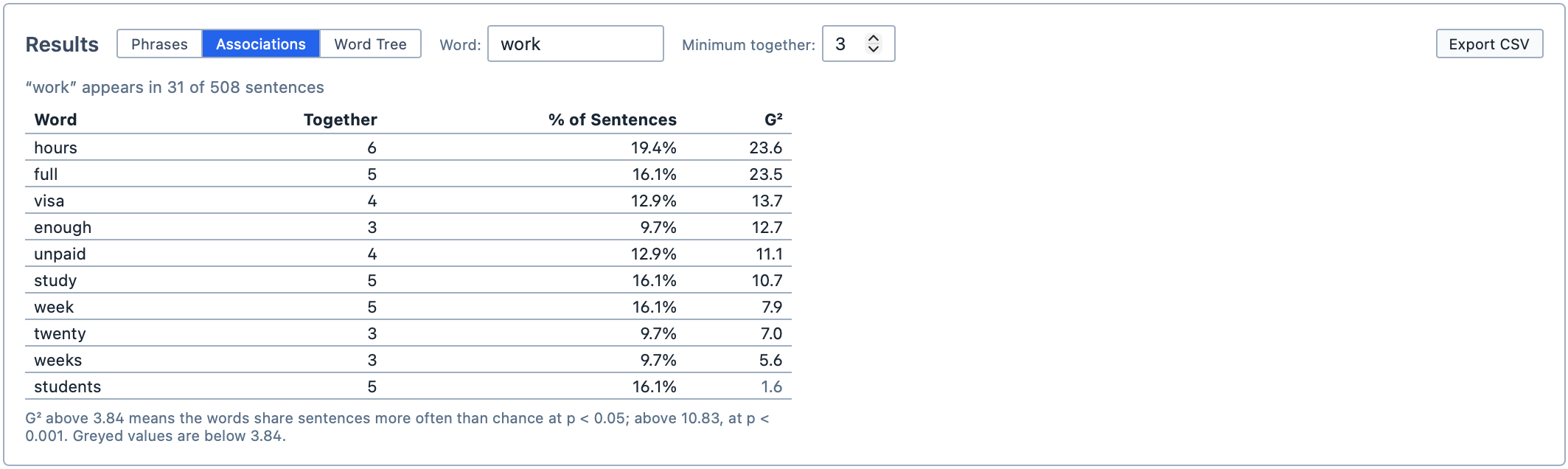
Click a word in the table to find the sentences where it appears with the chosen word. They are shown in the Query Results pane.
Word Tree
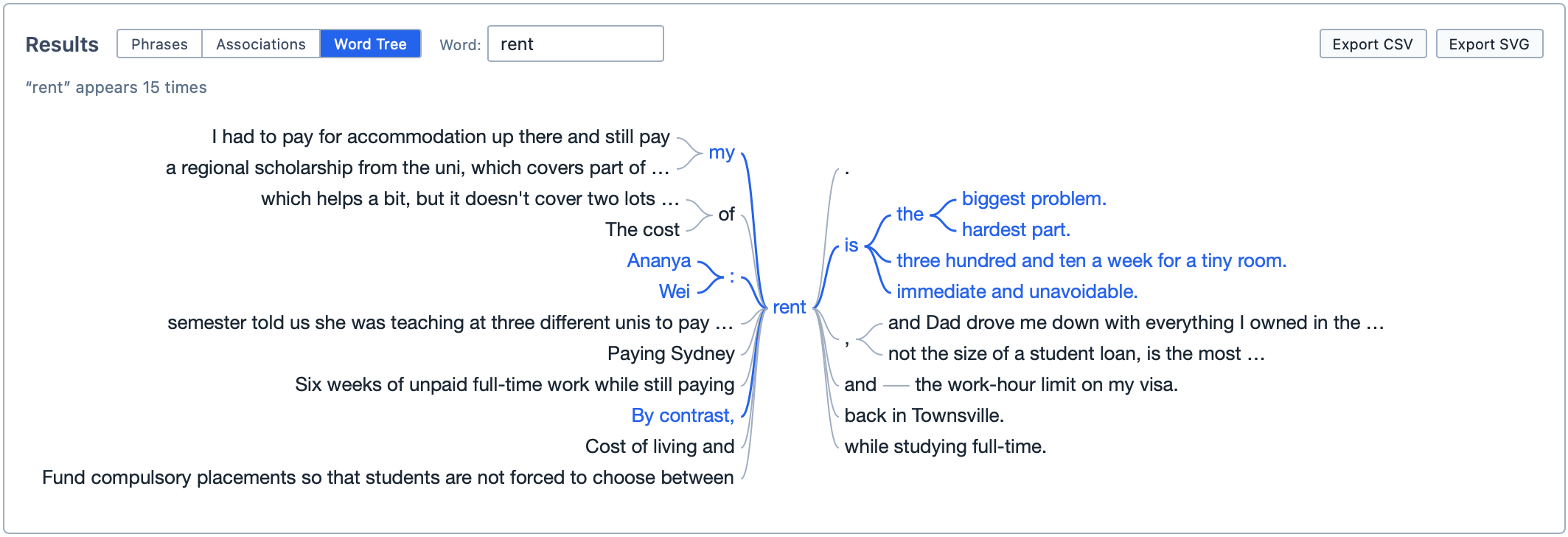
Word Tree shows every place a word you choose appears. The words that come after it branch out to the right, and the words that come before it branch out to the left. When several sentences go on in the same way, they share a branch, so the tree reads as the phrases your participants use. Think of it as reading every sentence containing the word at once.
To see a word tree:
Click
Word Tree.Type a word into the
Wordbox. If you leave it empty, Magnolia uses the most frequent word that isn't a common English word. The word is shared withAssociations, so you can switch between the two.
Hover over a branch to highlight the sentences that run through it, on both sides of the word. Click a branch to search for it: the text from the word to the end of the branch is shown in the Query Results pane.
A branch reaches up to 12 words from the chosen word. If a sentence goes on further, the branch ends with ….
The word tree shows every word, so the Only these words and Leave out these words boxes are hidden while it is showing.
TIP
A very common word, such as "the", can produce a tree with hundreds of branches. The tree scrolls, but you will usually learn more from a less common word.
Saving and exporting
You can save the analysis by clicking Save Analysis. It appears in the Saved Analyses Panel. If you make changes later, click Update Analysis to save them.
You can export the current results as a spreadsheet by clicking Export CSV. In Word Tree, and in the phrase network, you can also export the picture by clicking Export SVG.
You can also add the analysis to a Report by dragging it from the Saved Analyses Panel into the report. The report shows the results in the way they were showing when you saved the analysis.